Cytoscape MCP Server
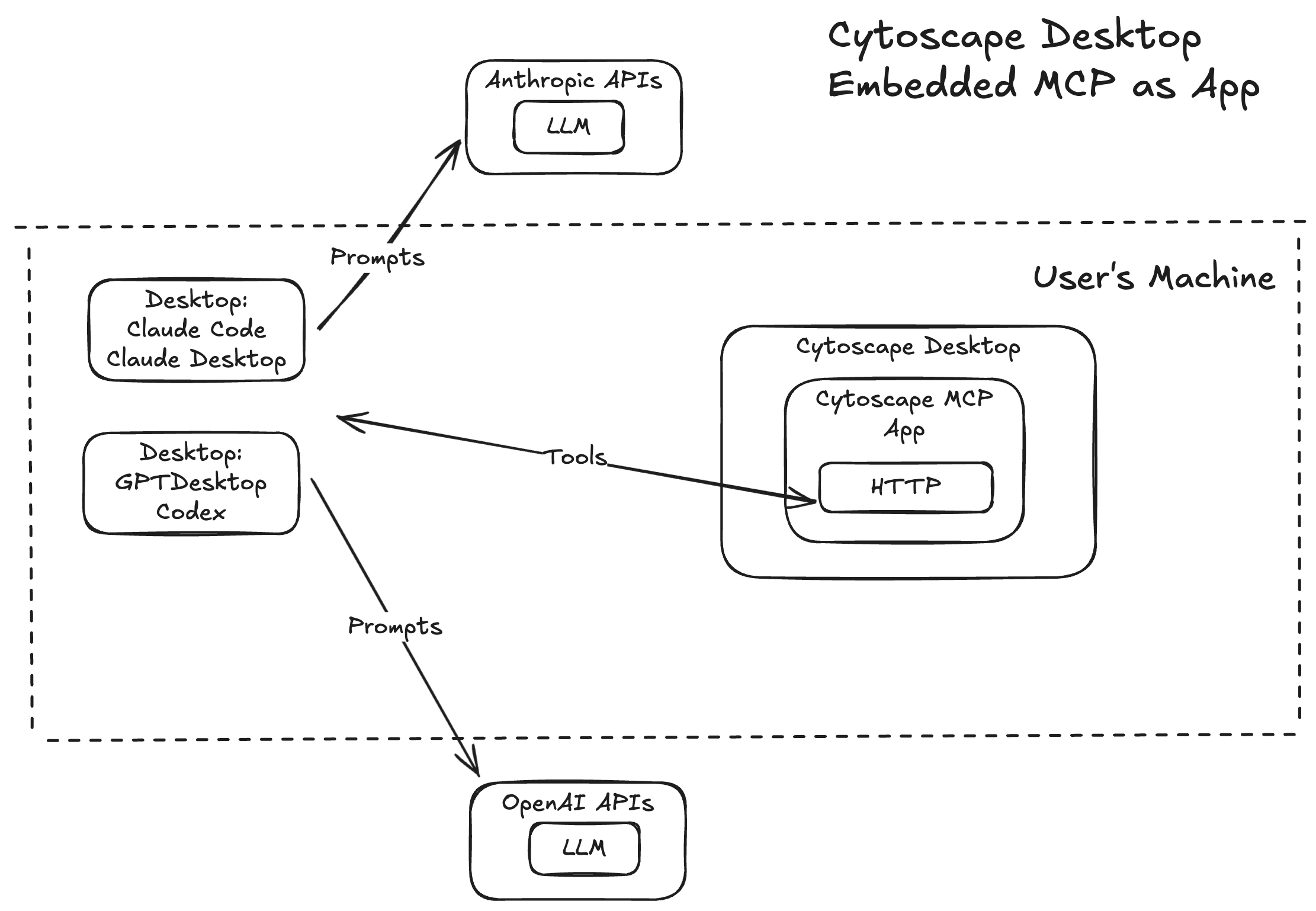
An embedded Model Context Protocol (MCP) server for Cytoscape Desktop, packaged as a Cytoscape App. AI clients such as Claude Desktop connect to Cytoscape over HTTP and invoke tools that control the desktop application directly — loading networks, setting active views, and more.
NOTE: This app is experimental. The interface and available tools are subject to change.
Architecture
How It Works
Once installed, the app publishes an MCP endpoint inside Cytoscape's existing CyREST HTTP server — AI clients connect to the MCP endpoint with Streamable HTTP transport and call MCP tools which drive activity on the Cytoscape desktop display.
The app also adds two visual indicators to the Cytoscape Desktop UI:
MCP toolbar button
a bold MCP button in the bottom-left status bar. The label is green when the MCP server is running and red when it is not. Clicking it opens the Agent Configuration dialog which displays the full MCP url and connection instructions for all supported agents.
Task History entries
every MCP tool invocation is recorded in Cytoscape's Task History panel (View > Show Task History), so you can see exactly which tools an agent called and when.
AI Agent──► HTTP──► http://localhost:{rest.port}/mcp ──► Cytoscape Desktop
                                                               └── load network from NDEx or file
                                                               └── get loaded network views
                                                               └── set current network view
                                                               └── create network view
Requirements
- Cytoscape 3.10 or above
- Internet connection (for loading networks from NDEx)
- An MCP-compatible AI client that also supports the Streamable HTTP transport(not SSE which is deprecated as of 02/2025) (e.g. Claude Desktop)
Try it!
Install from the Cytoscape App Store (recommended)
Install Cytoscape MCP Server from the App Store — this is the MCP server itself, and everything else on this page depends on it being installed and running:
Or from inside Cytoscape: Apps > App Manager, search for Cytoscape MCP Server, and install.
Install a JAR manually
Alternatively, get the app jar:
Then:
- Open Cytoscape Desktop.
- Navigate to Apps > App Manager > Install from File.
- Select the file path to the MCP App JAR and restart Cytoscape if prompted.
After startup, the MCP status can be viewed via the MCP button in the status bar.
Connecting an Agent to Cytoscape Desktop MCP
See docs/AgentConfiguration.md for step-by-step setup instructions for Claude Desktop, Claude Code, GitHub Copilot (VS Code), GitHub Copilot CLI, and OpenAI Codex CLI.
Cytoscape Desktop MCP Diagnostics
- Most agents will have a
/mcpcommand or UI settings panel which will show status of connection to the MCP server and a list of tools currently published by this server, check to see if it is denoted as 'connected'. - Check the MCP health endpoint
Replacecurl http://localhost:{rest.port}/mcp/health{rest.port}with Cytoscape's CyREST port (shown in the Agent Configuration dialog). You should see{"status":"ok","transport":"mcp-streamable-http"}. A "connection refused" error means Cytoscape is not running or the port is wrong. - Use external MCP introspection tools against the Desktop MCP server running at
http://localhost:{rest.port}/mcpto validate or view current tools catalog - modelcontextprotocol/inspector
Building from source
If you want to build the app jar directly from source instead of using release jars.
Requirements:
git clone https://github.com/cytoscape/cytoscape-desktop-mcp
cd cytoscape-desktop-mcp
make install
The JAR is produced at build/libs/cytoscape-mcp-<VERSION>.jar.
For a full list of build targets:
make help
Release tags
Two components ship from this repo on separate tag namespaces:
| Component | Tag | Produces |
|---|---|---|
| Cytoscape App (the MCP server) | vX.Y.Z | cytoscape-mcp-<VERSION>.jar, plus a convenience copy of the .mcpb |
MCPB bridge (claude-extension/) | mcpb-vX.Y.Z | cytoscape-mcp.mcpb, and publishes to npm and the MCP Registry |
The bridge is versioned independently of the app because the bridge is distinctly separate deliverable with separate source tree for it to provide a stdio-to-http transport bridge that some agents may use. See registry/README.md for the release runbook.
Cytoscape Desktop MCP Tool Catalog
The MCP server provides a human-readable catalog of every tool registered on the server formatted as Markdown with complete MCP Protocol JSON schema definitions for each tool's input and output. You can obtain the catalog through multiple options:
- When the app is loaded in Desktop, at runtime the MCP server exposes
<CyRest Url>/mcp/manifestendpoint which can be retrieved by browser or command line
curl http://localhost:{rest.port}/mcp/manifest
- After any build locally,
make buildwill generate the MCP manifest based on current code into a static file atbuild/generated/manifest/MCPManifest.mdfor same review. - Static copy of the catalog is also stored in repo at MCPManifest.md
Activate Cytoscape Desktop MCP tools from Agent prompts:
Invoking the tools requires some prompt engineering to provide key words or phrases which will activate the LLM to choose usage of a tool. Check out MCPManifest.md which contains 3 to 4 examples of Prompt snippets on each tool's description as reference of how to trigger LLM activation.
- an example of a simple prompt which will lead the LLM to reason over the available tools as a whole and orchestrate their usage as building blocks into a sequence to reach the requested end result:
> open a network using cytoscape desktop
Cytoscape Desktop MCP Configuration properties
Properties are editable at runtime via Edit > Preferences > Properties > cytoscapemcp:
| Property | Default | Description |
|---|---|---|
mcp.ndexbaseurl | https://www.ndexbio.org | NDEx base URL (takes effect immediately) |
Documentation
Full documentation is in the docs/ directory:
- Agent Configuration — connecting Claude Desktop, Claude Code, GitHub Copilot, Codex CLI, and others
- User Manual — configuration reference and available tools
- Tutorial — end-to-end walkthrough: install, connect, load a network
- FAQ — common questions and troubleshooting
COPYRIGHT AND LICENSE
Acknowledgements
- TODO: denote funding sources